Pardus 2009 Looks Fantastic
First Impression
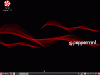
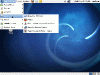
Before using Pardus, I had read in the Pardus release announcement that the Pardus had been “improved graphically in every part of the distribution”. It takes about 3 seconds to realize this as you put in the Pardus CD and immediately notice splash screens that have been updated from bootloader to login screen. The color/logo scheme carries on through the distro and provides a very pleasant experience. I also thought the KDE 4.2 desktop look and basic behavior was fantastic on Pardus.
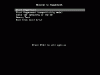
The one thing I noticed was the Turkish language setting was enabled by default. This doesn’t work for me as I can only speak and read English. Press F2 to change.
The Pardus 2009 CD can be purchased in our shopping cart on CD for $1.95
Packages
PiSi package manager is a well respected tool used for installing, upgrading and removing software packages on Pardus. I was able to add and remove packages easily using this graphical tool.

Media
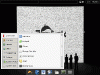
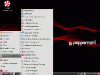
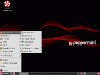
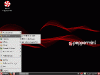
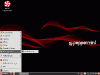
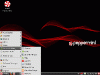
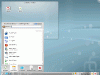
As you can see from the Pardus KDE menu, Pardus has no shortage of media applications. Some big name apps I found immediate use for include Amarok, K3B, and MPlayer.

Installation
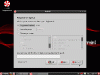
Just to give you an idea of how easy the installation is and the amazing graphical look, check out these screenshots from the time I inserted the Pardus install CD to the final Pardus desktop. YALI (Yet Another Linux Installer), works well guiding even the most novice users through a short, basic install.
Press F2 on the first screen you see after inserting the CD if you want to enable English. Hurry up though, wait to long and you’ll be installing in Turkish. After changing the setting press Enter.
On the first screen of the Pardus installer you need to agree to the GPL License. Click Next.

On the next screen we can avoid errors in the installation process by choosing to test the installation discs integrity by clicking on the button in the middle of the window. click Next to continue.

Now we need to choose a keyboard layout. I’ve selected English and then the Next button.

Set your date, time and timezone on the next screen of the installer. Click Next.

Now enter your real name, user name, and password. Click Next.

The Set Administrator screen allows us to set the root password. Type this in, confirm it, set your host name if you want, and click Next.

When choosing your partition options you can select automatic or manual. I selected manual and clicked Next.

Check over the summary of your installation and Click Begin Install.

Up to this point I was very impressed with the visual presentation of the Pardus setup so far. Not just the matching windows, splash screen and buttons but also the location of thing like the Begin Install button at the end there. It just flows nicely making a snapping seamless install. After the installation begins you’ll notice the status bar start to fill up along with a slideshow of Pardus features. The slideshow is excellent and pointed me right to the sweet spots of Pardus.
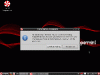
After waiting for the installation to finish you’ll be presented with this confirmation screen. You’ll need to reboot your new Pardus system from here.

The matching login screen is followed by an impressive graphical splash display and then on to the Pardus desktop.
Pardus 2009 RC2 was used to create this review. Pardus 2009 stable will be released on 07/17 and can be purchased in our shopping cart for $1.95